Team · Approvals
Every sign-off, in one inbox
Library reviews, campaign plans, launch requests and time off wait in one place, and each is decided through the rules of the tool that owns it. Try the demo below, or create a workspace and send your first plan for approval.
Already have a workspace? Sign in
Team · Approvals
In most agencies a sign-off is a chat message that says “looks good, send it.” It is attached to no version, nobody finds it a month later, and the teammate who edited the file afterwards never saw it. Approvals in AI Marketing Dashboard replaces that with an approval workflow built around one inbox. Library assets sent for review, campaign plans submitted for approval, launches someone asked for and leave requests all wait there, each decided by a person allowed to decide it, through the rules of the tool that owns it. A plan edited after it was approved says so, and a launch cannot go out on the strength of an old yes.
Chat or inbox
Where a yes is kept decides whether it can be trusted
A sign-off is only as good as the record it leaves. Set a thumbs-up in a thread beside a decision made where the rules can see it.
Sign-off by message
Each yes was sincere, and none of them can be checked afterwards.
Sign-off in one inbox
Every decision keeps the rules of the tool it belongs to, so the inbox adds no shortcut.
The inbox
Clear the morning's decisions in one pass
Everything waiting on a person is listed by what it is and who has to move next, so the first ten minutes of the day are a pass through one page.
Library, launch and time-off decisions without the tab hopping
One plan's path
From a submitted plan to a launch that is allowed to run
Four moves carry one plan from the person who built it to the person who publishes it, and each leaves a record behind.
Submit with a reviewer
Decide on the plan as it stands
Open it in Launch
Ask a publisher if you cannot
Watch the walkthrough
Watch a Library asset, a plan and a launch request get decided
The walkthrough starts from what is waiting, opens an asset as the client will see it, sends it back with a reason, approves a plan, and ends on why a launch request is a separate decision.
42 seconds
0:00 See everything waiting on you. Library assets, plans, launches and time off land in one inbox. Filter it by client.
0:06 Open the asset as the client will. Library reviews open full screen, showing the asset exactly as the client sees it.
0:11 Send it back with a clear reason. Request changes needs a note. Say what to fix so the author can act on it.
0:20 Approve a plan as it stands. Alex Morgan, an Agency Admin, approves Jordan Lee's plan exactly as written.
0:29 Launch requests are separate. A launch waits for someone with Publish. Approving a manual one only creates a task.
Put every decision where the rules can see it
Add your team and your clients to a new workspace, then send a first plan for approval and watch it arrive in the inbox.
Plans start at $99/month.
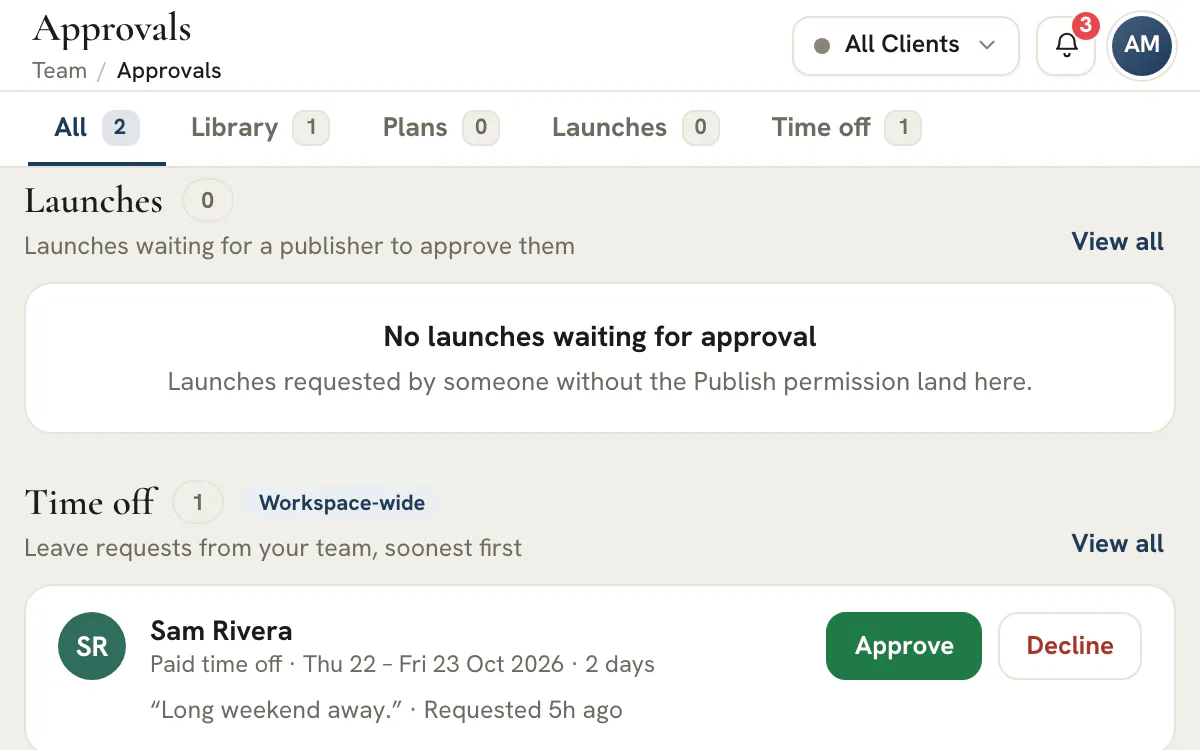
Team, then Approvals, opens a single page with up to five tabs: All, Library, Plans, Launches and Time off. The Time off tab appears for Agency Admins only. Every tab carries the number of items waiting on a person, All shows the first five items waiting from each source with a View all link, and a client filter narrows the client work to one account. The filter starts on the client the header switcher is set to, when that client has anything in the inbox, and one click widens it to every client. Leave is not client work, so the Time off tab ignores the filter and says so with a Workspace-wide label.
Nothing is copied into a second system. A Library review is still decided on its review screen, a plan through its approval, a launch through its record and leave through the time-off request, so the inbox adds no rule of its own and no loophole. It refreshes when you return to the tab and every minute while it stays open, and a link from a plan or launch notification, or from a Library notice that is waiting on you, opens the right tab on that item, so an approver arrives at the thing they were asked about instead of a list to search.
A sign-off is only worth something if it still describes what ships. When a campaign plan is approved, the server records a fingerprint of its content: the name, channel, theme, platforms, audience and settings, the Library templates an email plan sends, and the saved audience an email, SMS or paid plan targets, meaning its definition and, for a fixed list, its members. Who a rule-based segment matches on the day is not part of it. Change any of it later and the fingerprint no longer matches. The plan then reads Changed since approval wherever its approval is shown, and it cannot launch until it is submitted and approved again.
The comparison is made by the server against the plan as it stands now, never by the screen, and it is repeated where it matters: when a launch is created, when a launch request is approved, and just before a scheduled launch acts. A plan edited while it waits in the queue cannot be approved either; the inbox says it has to be submitted again. Library assets are reviewed differently: they carry a status, and editing an approved asset does not reset it, so a reviewer reopens the review when the work changes.
Approving a plan, launch or leave request takes a click and a confirmation, with an optional note. Requesting changes takes a click and a sentence, and the sentence is required: a plan cannot be sent back without a note saying what to change, a launch cannot be declined without a reason, and a leave request cannot be declined without one either. The Library review screen also requires a note when you request changes. The plan returns to the person who submitted it as Changes requested, the review task goes back to their list with the note attached, and the item leaves the approver's waiting count.
That keeps rework out of chat. The author reads the reason where they submitted the work, edits, and submits again, and the approver meets it as a fresh submission with a fresh fingerprint to check. In the Library, the review screen shows the asset the way the client will see it, and comments can be pinned to a spot on the preview and kept internal, or shared with the client by someone with the Publish permission, so feedback points at the thing rather than describing it from memory.
A plan submitted by one person is approved by another. If the submitter tries, the server refuses with a plain message, and the inbox shows a hint where the Approve button would be instead of offering one. The reviewer named on a submission is a pointer, not a lock: any teammate holding the approve permission for that client can decide, so one person's absence need not stall a campaign while another approver is around, and a submission that names nobody can be picked up by any approver.
One exception exists, and it leaves a trail. An Agency Admin can approve their own submission, or a plan nobody submitted, and the approval is stored as self-approved and labeled that way in the inbox; when the plan was submitted, its review task records it too. For a small agency where the owner is also the strategist, that is honest bookkeeping rather than a workaround: the history shows who decided and that no second person did.
Not everyone who builds a campaign may put it live. Launching needs the Publish permission for the client, and an email or SMS launch also needs CRM access to the client, whether you launch it, approve it or ask for it. A teammate without Publish can still ask. The request appears under Launches as Waiting for launch approval. The row shows who asked, their note, and the checks as they stood when the request was made, warnings included: a Library template that is not yet approved, for example. A request that fails a check is refused when it is filed, so a waiting one has cleared the blocking checks. A publisher approves or declines, and a decline needs a reason the requester can read.
Before approving, the publisher reads a short consequence line: who an email will reach and whether it starts at once or on a schedule, or that a manual launch only creates a task for whoever publishes by hand. The checks then run again, because things move between a request and its approval, and a failing check is listed in the dialog rather than waved through. Email launches send; paid, social and SMS launches are recorded as done by hand, and the inbox is plain about which is which.
Leave requests are not client work, so they get a tab of their own, shown only to Agency Admins and labeled Workspace-wide. Each row names the person, the kind of leave, the dates, the working days counted and any note they left, and Approve or Decline opens the same dialog the other tabs use. Declining requires a reason the requester will read, so a refusal never arrives as silence.
The rules are the ones HR would insist on. Your own requests never appear in your inbox, and nobody decides their own leave while another active Agency Admin exists. Only in a workspace with a single administrator may someone decide their own request, and the record then shows it was a self-decision. The requester hears the outcome by email, the day count was worked out once by the server so the figure approved matches the figure they saw, and the member's profile is one click away for context. The permission cannot be delegated to a lead: it stays with administrators.
Some approvals need more room than a row. Timesheet entries are reviewed in the Worklog with a whole week in view, and booking-script revisions are reviewed beside the script. The inbox leaves them where they work best and adds one card, Also waiting, with a count and an Open link for each, so an administrator who starts the day here still learns how many entries are waiting without opening a second tool to find out.
Counts are honest or absent. Each source reports its own state, and one that fails to load shows an error card with a retry instead of a zero; a count that could not be read is left out, never printed as none. The same rule covers the whole page: a broken Library read cannot blank the Plans tab, and a long queue says when it has been cut at the newest items rather than implying that is everything.
Settle this once, before the first launch, and every later argument about who should have approved something gets shorter. The table states what the console enforces today, row by row.
| What is waiting | Who submits it | Who decides it | A second person? | What the decision does |
|---|---|---|---|---|
| A Library asset: theme, keyword list, copy, creative, landing page, booking page, form or email | Anyone who can edit the Library | Anyone with the Approve permission for that client | Not enforced: an approver may approve what they submitted | An approved asset, or one with approval skipped, may be shared with the client |
| A client's review of a shared asset | The agency asks, with the Publish permission | The client: a portal admin approves, any portal member can request changes | The client is the other party | The answer is recorded on the review, and an approval can be undone within one hour |
| A campaign plan | Anyone who can edit the Library | Anyone with the Approve permission for that client | Yes, except an Agency Admin, and the exception is recorded | The plan may be launched, as long as nobody edits it afterwards |
| A launch request | Anyone who can edit the Library, with CRM access for email and SMS | Anyone with the Publish permission for that client, with CRM access for email and SMS | Always: without Publish you cannot launch, so a publisher decides | An email launch starts or is scheduled, and a manual launch creates a task |
| A leave request | Any team member, for their own leave | An Agency Admin only | Yes, while another active Agency Admin exists | Records approved or declined with the reason, and emails the requester |
By default an Agency Team member can view, create and edit Library assets and plans, which means they can submit plans for approval but not approve or publish. A request to launch an email or text campaign also needs the requester to hold CRM access, which team members lack by default. Agency Admins hold every permission. An administrator can grant Approve or Publish to a lead, one person at a time or through a permission template, and a teammate acts only on the clients they are assigned to. Time-off decisions cannot be delegated at all.
Tip
Write the matrix down before the first launch
For each client, name who approves plans and who publishes, and make them different people where you can. Where one person must do both, the console records it, which is the honest alternative to pretending a second pair of eyes looked.
The same five words come up on every tab. Each means one thing.
People keep approving in the place they already talk. A rollout works when the inbox is easier than the message, so start with one client and one kind of decision.
List the yeses you give today
For a week, note every sign-off that happens in chat or email: a creative, a landing page, a campaign, a launch, a day off. Sort them into the four things the inbox holds, and leave the rest where they are.
Name approvers per client
Choose who approves plans and who publishes for each client, grant those permissions and assign those people to the client. A teammate who is not assigned to a client will not see its work in the inbox.
Run one client for two weeks
Ask submitters to name a reviewer and put the reason in the note. When someone asks for a yes in chat, answer that it is in the inbox and decide it there. The review task, the bell and an email already tell the reviewer, so most reviewers hear about it without a nudge.
Make the inbox the only yes
After two weeks, move the next client over. Tell the team that a launch without an approved plan is refused by the console anyway, and begin each day on the All tab, treating a count above zero as the first job.
The warning is not a nag. It marks the moment a plan stopped being the one somebody agreed to.
| State | What it means | What happens next |
|---|---|---|
| Pending | Submitted and waiting for an approver | A reviewer decides: approve it, or return it with a note |
| Changes requested | Sent back to the person who submitted it | They edit the plan and submit it again |
| Approved | The approver accepted the plan as it stood | It can be launched from its channel's Launch page |
| Changed since approval | The plan was edited after it was approved | It needs a new approval before it can launch |
The comparison reads three things: the plan itself, the Library email templates an email plan sends, and any saved audience behind an email, SMS or paid plan: the audience's definition and, for a fixed list, who is on it. An edit to any of them counts, including an edit to a template that other campaigns share. A segment defined by rules can still match different people by the send day without staling the approval. A pending submission that was edited while it waited cannot be approved, and its row says it has to be submitted again.
Two limits are worth knowing. If a plan is edited after a launch was scheduled, the dispatcher compares again just before it acts, and the launch then fails with a plain explanation and nothing is sent. And Library assets work differently: an asset carries a review status instead of a content fingerprint, so an edit to an approved asset leaves its review as it was. Reopen the review when the work changes.
The inbox is built to be cleared from the top. This order puts the decisions that block other people first.
Start on All
Read the counts on the tabs. If the header switcher has narrowed the client filter to one account, widen it first, so nothing waits behind a filter you forgot you had.
Take launch requests first
Someone is waiting to publish. Read the checks and the one-line consequence, then approve or decline with a reason. A failing check appears in the dialog and holds the approval.
Then the plans
Open each plan from its row. A row flagged as edited after submission cannot be approved, so ask for a resubmission rather than waiting. Request changes with a note that names what to change.
Then the Library
Open each review as the client will see it. Approve, request changes, or skip approval, which records that nobody reviewed the asset and is not shown as approved. Pin a comment to the spot you mean.
Finish with leave and Also waiting
Administrators decide leave last, with a reason on every decline. If the Also waiting card shows timesheet entries or booking-script revisions, open the Worklog or Booking Scripts from its links.
Three habits keep the pass short: submit with a note, name a reviewer, and decide in the inbox instead of in chat. The inbox reads again whenever you come back to the tab and once a minute while it stays open, so you can leave it open and return to an up-to-date count.
A decision queue is only trustworthy when its edges are clear.
Plans and launches are internal decisions. The client's sign-off applies to Library assets you share with them.
Approve internally first
An asset can be shared with a client once an agency approver has approved it or skipped approval. Assets already shared before approvals existed are labeled as shared and never blocked.
Share, then request review
Someone with the Publish permission shares the asset and asks for the client's review, with an optional note that the client sees with the request. Comments marked as shared are visible to the client too.
The client answers in the portal
A portal admin approves, and any portal member can request changes. Both happen on the asset as the client sees it, with comments they can pin to the spot they mean.
Undo, reopen or ask again
The client can undo an approval within one hour. After a request for changes you edit and ask again. You can withdraw the request while it is with the client, and reopen the review once it has been approved or skipped.
In the inbox these assets sit under With the client on the Library tab until the client approves them, and then under Decided. If the client asks for changes, they stay under With the client until you ask again or withdraw the request. Client review needs the client portal, which comes with the Scale and Enterprise plans. Artwork is a common case, and creative asset management shows how versions and review sit on the creative itself.
Four things usually need a named decision: creative and copy before they reach a client, campaign plans before money is committed, launches before anything goes live, and time away before it is promised. This inbox holds all four, with the rules of each tool kept intact, so the workflow is a set of permissions and records instead of a document nobody opens.
The inbox is on every plan. What flows into it depends on the plan: the Paid and Social planners and launches need the Agency plan or above, the Email and SMS planners come with every plan, and a client's own review of a Library asset needs the client portal on Scale or Enterprise. Time-off decisions are available to Agency Admins on any plan.
Anyone holding the Approve permission for that client. Agency Admins hold it automatically, and an administrator can grant it to a lead. By default a team member can edit and submit but not approve or publish. Team members also act only on the clients they are assigned to, so an approver sees the inbox filtered to their own accounts.
It depends on the kind of item. A plan cannot be approved by the person who submitted it unless they are an Agency Admin, and then the approval is recorded as self-approved. Library reviews do not require a second person, so an approver may approve what they submitted. Nobody decides their own leave while another administrator can.
It reads Changed since approval, in the inbox for approvals from the last 14 days and on the plan and Launch pages, and it cannot be launched until it is submitted and approved again. The server compares the approved content with the plan as it stands when a launch is created or approved, and again just before a scheduled launch acts, so the approved content cannot ship as different content.
Email launches send. Today, approving a paid, social or SMS launch creates a task and an exported spec for a person to carry out, and a publisher then marks the launch as launched, published or sent, with an optional link. The console does not post to social networks or send text messages.
No. The inbox is internal, and plans and launches are never shown in the portal. A client sees the Library assets you share with them, in their own branded portal, and reviews the ones you ask them to: a portal admin can approve, and any portal member can request changes. The portal comes with the Scale and Enterprise plans.
The inbox sends no reminder emails and does not escalate. A plan submission rings the bell and emails the reviewer, or every approver of the client when none is named, and creates a review task due in three days. A Library submission notifies approvers and creates no task. The weekday morning summary lists the Library reviews, time entries and leave waiting on you. An item waits until someone decides it, so use the counts and the task dates to chase.
Each source reports its own state. A failed read shows an error card with a retry on that tab only, and the other tabs keep working. A count the server could not read is omitted rather than shown as zero, and a list cut at its limit says so, so an empty tab never hides unread work.
The Activity Center is a feed of what happened across the console, with filters and read state. The approvals inbox is where decisions are made, with their rules: who may approve, what the approval covers and what happens next. Many items appear in both, and a notification about an approval opens its row here.
