Library · Main Library
Draft a whole campaign in minutes
Five themes with keyword lists, ad copy and creative concepts under each, written from a client's profile and research and saved as unshared drafts for your team to review. Create a workspace, or look inside the demo below.
Already have a workspace? Sign in
Library · Main Library
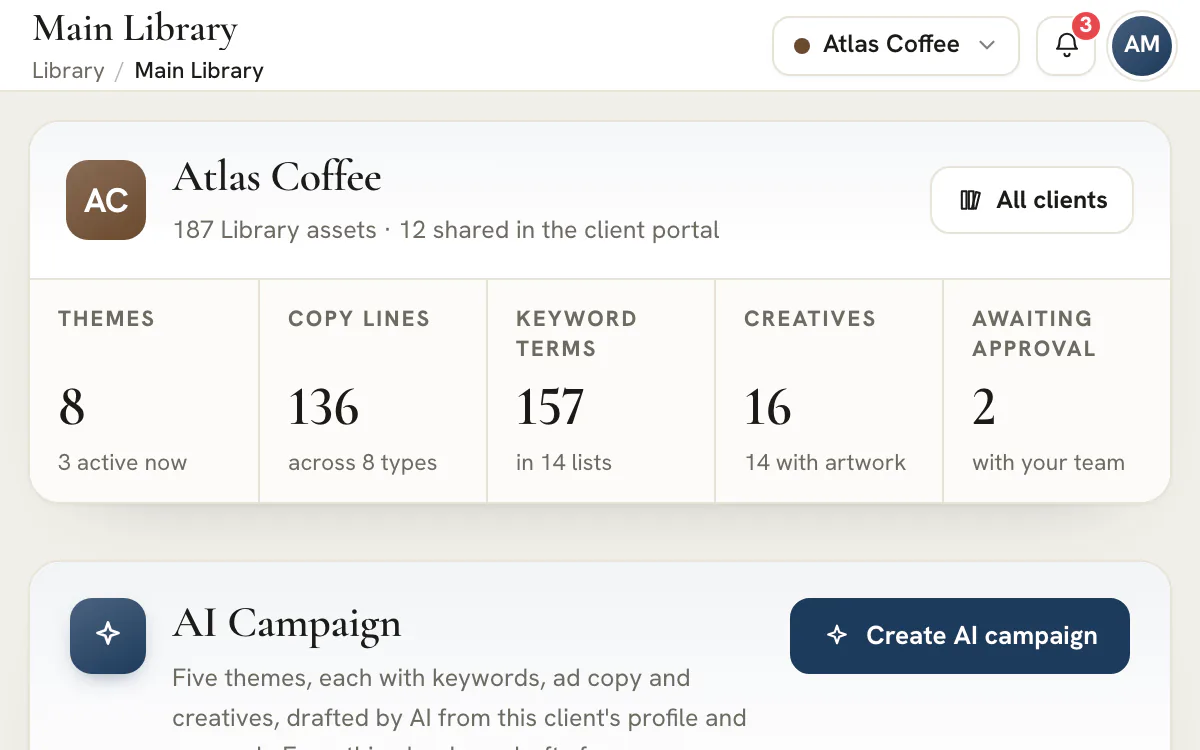
A new campaign starts with a pile of first drafts. Someone settles five angles, compiles target and negative keyword lists, writes headlines that fit each platform's limits and briefs the creative, then checks all of it against what the client already has. The Main Library in AI Marketing Dashboard takes away the blank page. The AI Campaign card drafts five themes for a client in a single run, with keyword lists, ad copy and creative concepts under each, from its profile and published research, and every draft lands unshared for your team to review. Around that card, the same page shows what every client's Library holds, tool by tool and theme by theme, so a gap is visible before anyone asks.
The AI Campaign card
Five themes, and everything under them, from one card
The AI Campaign card writes the first pass of a campaign for one client, so the team begins by editing.
Choose the pieces, then leave it running
From click to client
Review the draft like any other work
A campaign changes who writes the first version. It does not change who decides.
Brief it
Let it run
Edit the drafts
Send for approval
The whole Library
See what every client has, and what it lacks
The page that starts a campaign also reads the state of the Library, for one client or for all of them.
Per client
Five numbers across the top
Per tool
A row for each of twelve tools
By theme
Coverage by angle
All Clients
A table of every account
Research
Research status in view
Watch the walkthrough
Watch how the Library fits together
A short tour of the Library: how themes guide every tool, why each asset is built once, how review comes before sharing and how plans reuse the work, with each chapter listed beside the video.
34 seconds
0:00 One Library for all your reusable marketing. Open the Library group to see every tool for the client you have selected.
0:04 Themes guide every asset. A theme sets the audience and angle. Keywords, copy and creatives are filed under one.
0:11 Build each piece once. Creatives, keywords, copy, pages, forms, emails and audiences each have their own tool.
0:17 Review before anything is shared. Assets are reviewed inside the agency first. Approvals gathers every review in one inbox.
0:23 Plans reuse your Library. Plans reuse your copy, creatives, keywords and audiences. Nothing launches from here.
Give the next campaign a first draft to edit
Add a client, then let the Main Library draft themes, keywords, copy and creatives for your team to review.
Plans start at $99/month.
The AI Campaign card sits on a client's Main Library page. Press Create AI campaign, check the options and press Generate campaign, and a background job drafts five themes. Under each theme it writes a target keyword list of up to twelve terms and a negative list of up to eight, ad copy for the packs you choose, and up to three creative concepts, each with an optional generated picture. At the defaults that is ten keyword lists, about 120 copy lines and ten creatives with artwork, and the dialog adds those totals up before you start.
A run usually takes 5 to 15 minutes, a little longer when artwork is on, so the card is built to be left alone. Leave the page or move to another tool and the drafts keep landing in the Library as they are ready, with each theme shown as queued, writing or done. The person who started a campaign, or an Agency Admin, can cancel it. A client has one running campaign at a time, a workspace only a few, and each person and each workspace has a daily limit, so a stray click cannot start a stack of paid calls.
Describe the campaign in up to 600 characters: a product, an offer, an audience or a moment to build the themes around. The brief is optional, but one specific sentence beats leaving the model to guess. Then pick an angle (Core positioning, Promo & offer, New audience, Objection & proof or Seasonal moment) and what each theme gets. Keywords can be switched off. Copy comes in five packs: Google Search ads, Meta ads, Email, SMS and Social posts. Creatives run from none to three per theme. Choose everything and the estimate reads about 200 copy lines and 15 creatives, so you can trim before anything is drafted.
The draft is grounded in the client rather than in a generic prompt. For anyone whose role reaches client profiles, it reads the Profile and the latest completed company research, and the card says which research it will use, or warns when there is none or a run is still going. A figure in a draft, such as a percentage, a price or a rating, has to appear in the brief or the client's verified record, and drafts that break the house writing rules are dropped before they land. Without profile access the AI works from your brief and the client's existing Library, and the card says so.
Drafts are written straight into the ordinary Library tools: themes arrive with the status Draft, keyword lists and creatives carry an AI campaign tag, and copy lines are filed under their theme. None of it is shared with the client, and nothing is sent, published or launched. Anyone who can see that client's Library can see the drafts, which the start panel says plainly, so treat a campaign like a teammate's work in progress.
Review follows the same path as work written by a person. Open each tool, edit or delete what is off, and submit what is ready for internal approval; an asset needs an approval, or an explicit skip by someone with approval rights, before it can be shared. A campaign's drafts have no review record until someone submits them, so the Approvals inbox stays quiet until your team acts. Portal access is part of the Scale and Enterprise plans, and where a client has one, an approved asset can be shared into it and sent for the client's own answer. If a campaign stops partway, what landed stays and the card names what is missing.
Pick a client and the page opens with its Library band: themes, copy lines, keyword terms, creatives and the reviews waiting, beside how many assets are shared in the client portal. Under the AI Campaign card, Library at a glance lists twelve rows, one for each tool from Themes to Approvals, with a sentence on what exists in it, such as how many target and negative lists hold how many terms, or how many emails are still drafts. Each row has an Open link to its tool, so a gap turns into an action.
Each number follows the definition the tool's own switcher uses, so the two agree; where a tool holds more than a thousand rows for one client, the overview is the exact count. A tool your role or plan withholds shows a lock, which means hidden and not empty. A read that failed shows a dash and never a zero. That distinction matters when a quiet row could mean no keyword lists or no access to see them.
Choose All Clients in the switcher and the page becomes a portfolio: a headline strip summed across the roster, then a table with a row per client and a column for each Library family, plus company research where your role reaches it. Sort by client or by any family to find the account with no creatives, the client with the most reviews waiting or the one that has never had a keyword list. Select a name and the page switches to that client's breakdown.
Totals say how much they cover. If your role reaches a family for only some clients, the headline reads across 3 of 12 clients, for example, instead of passing a partial sum off as the whole, and a withheld cell shows a lock rather than a zero. Below 1,024 pixels the table stacks into cards. For an agency lead it is the Monday view: who is thin, who is waiting on a review and where the next campaign should go.
Every Library tool files its work under a theme, so the By theme table reads as a coverage map. Each row is one angle with the keyword lists, copy lines, creatives, blog posts, script sets, landing pages, forms and emails filed under it. A theme with copy but no creatives, or creatives but no keyword list, shows without opening a single tool, and each theme row links to Themes for editing.
The table lists up to 20 themes per client and says when it has cut the list. Archived themes fold into a group of their own, kept as history, and work with no theme sits under Unassigned, so a deleted angle never hides an asset. When an AI campaign finishes, its new draft themes join the table with what was drafted under each, unless the client already has more than 20 current themes, in which case the table lists running ones first and says how many it did not show.
The Company research row at the foot of a client's page shows the newest run as a chip: Not started, Queued, Running, Publishing, Complete, Partial or Failed. Beside it sit how the run began, at onboarding or by hand, and a relative time such as completed 3d ago. A link opens the client's Research tab for the full record. Because campaigns draw on the latest completed research, this is the line to check before you press Create AI campaign.
Research status is client-profile data, so it follows profile access. Roles without it see no research row, no research column in the portfolio and no run named on the AI Campaign card. The row shows status and timing only, never the findings themselves. That keeps the page safe to open across a team where only some people handle the client relationship.
The brief is optional and stops at 600 characters. What you write in it, and what the client's record already holds, decide how specific the five themes come out.
Spend the brief on what research cannot know: the offer you are about to run, the audience you want this quarter, the moment the campaign is built around. When your role reaches client profiles, the generator already has the client's name, industry, website and verified research, so repeating them wastes characters. When it does not, your brief and the existing Library are all it has, so say more.
| Angle | Choose it when | A brief that suits it |
|---|---|---|
| Core positioning | You want standing reasons the client gets picked at all | Family-run plumber with same-day callouts across two counties |
| Promo & offer | A time-boxed offer needs themes with a window on them | Spring maintenance plan, booking open until the end of April |
| New audience | Existing themes do not speak to a segment yet | First-time homeowners who have never booked a service |
| Objection & proof | People hesitate for a known reason | Price worries about emergency callouts, answered by the written quote policy |
| Seasonal moment | A calendar-driven push can be planned ahead | Pre-winter boiler checks opening in September |
Tip
Turn down the wrong ideas first
Suggestions your team has turned down in Ask AI for this client are held against the generator: it is told to steer away from them, and exact repeats are dropped. Turn-downs made with access to client profiles only steer people who have that access too. A few thumbs-down in Themes before a campaign are cheaper than deleting five drafts afterwards.
A campaign fills four tools and touches nothing else.
| Piece | At the defaults | Range | Lands in |
|---|---|---|---|
| Theme | One draft theme, five per campaign | Five requested; a short run lands fewer | Themes, status Draft |
| Keywords | Two lists: targets, up to 12 terms, and negatives, up to 8 | On or off | Keywords, tagged AI campaign |
| Copy | 24 lines from the Google Search ads and Meta ads packs | None to five packs, up to 40 lines | Copy, filed under the theme |
| Creatives | Two concepts, each with artwork | None to three, artwork on or off | Creatives, tagged AI campaign |
The estimate in the dialog is an upper bound. Anything that breaks the house writing rules is dropped before it lands, such as a copy line over its platform limit or a figure the client's record does not support, so a finished campaign can hold slightly less than the estimate. Nothing is padded to reach a number.
Review a draft in the tool it landed in. The checks that catch most problems differ by asset.
| Draft | Check before it moves on | Fix it in |
|---|---|---|
| Theme | The angle is one the client would stand behind, differs from its existing themes and has the right owner; for an offer, add the promo window yourself, because drafted themes land without one | Themes |
| Keywords | Each target term matches something the client really sells, match types fit the intent, and negatives block waste without blocking a service | Keywords |
| Copy | Every line sits inside its platform limit, makes only claims the client can prove and sounds like the client | Copy |
| Creatives | The headline and on-image hook read cleanly, the picture has no stray text, logo or recognizable face, and the placement size is right | Creatives |
| Facts | Prices, dates, terms and results match what the client has confirmed in writing | Wherever the line sits |
The negative list is the check people skip. Read it against the target list and against the services the client really offers: a negative that blocks something the client sells costs impressions quietly. The generator is told that no negative may block one of its own targets, but it cannot know every service. Work through Keywords, Copy and Creatives in that order and the later checks get quicker.
Note
A draft is not an approval
A draft with no review record is only a draft. Anyone who can see the client's Library can see it, and the app will not share it into the portal until an approver has approved it or deliberately skipped approval.
The path is the one any Library asset takes. A campaign only changes who wrote the first version.
Find the drafts
Look for the Draft status on themes and the AI campaign tag on keyword lists and creatives. Copy lines sit under their theme.
Edit or delete
Change what is off and delete what you would not send. A deleted draft stays deleted, because a campaign writes each of its drafts once.
Submit for review
Submit each asset that is ready, and add an internal comment on it that says what the reviewer should check.
Approve
Someone with approval rights approves, asks for changes or skips. Approval allows sharing. It does not publish anything or reach the client, and the person who submitted the asset is told.
Share and ask
Share the asset into the client portal, then request the client's answer with an optional note. A portal admin can approve, any portal member can ask for changes, and an approval can be undone for an hour.
Every submitted review shows up in the Approvals inbox, grouped by who has the next move. A campaign adds nothing there until your team submits something.
Plan
Which plan does what
The Main Library, the AI Campaign card and internal approval are on every plan. The client portal, where approved assets reach the client, comes with the Scale and Enterprise plans.
The overview is only useful if each symbol means one thing. Here is what each one means.
Two habits make the page worth opening weekly. Read All Clients first, sorted by the family you care about this week. Then open the thinnest account and read By theme before you brief a campaign, because an angle that already has copy and no creatives needs a different brief from an empty one. When a client has audiences, Audiences shows how many segments, lists and paid groups sit beside the rest.
One click is the right tool for a first pass. It is the wrong tool for finishing.
| Situation | Use | Why |
|---|---|---|
| A new client with research done and an empty Library | The AI Campaign card | Five angles with keywords, copy and concepts give the team something to react to |
| One more angle for a client with a full Library | Ask AI in Themes | A single brainstorm adds to what exists instead of drafting a parallel set |
| Tuning the headlines of one ad group | Ask AI in Copy | It drafts against one copy type and its character limit |
| An offer that must follow exact wording | Write by hand | A model cannot know terms the client has not stated |
| Your role cannot see the client's profile | Brief carefully, then review harder | The generator has only your brief and the Library to work from |
| A campaign is already running for the client | Wait, or cancel it | Only one campaign can run for a client at once |
Whichever route you take, the Library keeps one rule: an AI draft is a starting point. Nothing from a campaign reaches a client until your team has approved it, or an approver has deliberately skipped approval, and then shared it.
The Main Library and its AI Campaign card are part of every plan, with no separate AI tier. Only the end of the review path depends on the plan: the client portal that approved assets are shared into comes with the Scale and Enterprise plans. Drafting, editing and internal approval work on all plans.
Anyone with permission to create Library work for that client. Every Agency Admin has it, and Agency Team members have it by default for the clients they are assigned to. The drafts are visible to everyone who can see the client's Library. Nobody on the client's side sees them until they are approved and shared.
It usually takes 5 to 15 minutes. It runs as a background job, so you can leave the page, switch tools or close the tab, and the drafts land in the Library as each theme finishes. Artwork adds a few minutes. The card shows each theme as queued, writing or done, and the person who started it, or an Agency Admin, can cancel after a confirmation.
No. Every theme arrives as a draft, none of the drafts is shared into the client portal, and no email, text or ad is sent or launched. Sharing is a separate step, and the app expects an internal approval, or a deliberate skip, first. A teammate who can see the client's Library can see the drafts, so treat them as work in progress.
Your brief, the client's existing themes and, for roles that reach client profiles, the client's profile and the newest completed research run. A draft may quote a number, such as a discount, a price or a review score, only when it already appears in your brief, the client's profile and verified research, or the Library's existing themes and copy. Without profile access the AI has only the brief and the existing Library, and the card tells you which case you are in.
Artwork never fails or stalls a campaign. A concept whose picture could not be drawn lands as a concept without artwork, and the card names the most common reason. If a theme cannot finish, the campaign reads as partly done and keeps whatever landed, so you can edit that or start again once the run has settled.
A lock marks a tool that your role or plan does not include, so the number is hidden rather than zero. A dash means the read failed this time and the figure is unknown, which is why it never appears as 0. Every other number on the page still stands. If the whole page is locked, ask an admin for Library access.
Yes, in two ways. Each client can run one campaign at once, and a workspace only a few, so a second start has to wait until one finishes or is canceled. People and workspaces are also capped over a rolling 24 hours, and when a cap is reached the card says so and roughly when to try again.
No. The Main Library is an agency page with no client portal screen. Clients see only the assets your team has approved and shared, in the portal's own Library, and the portal itself comes with the Scale and Enterprise plans.
