Menu

Library · Landing pages

Build client landing pages, in-house

A drag-and-drop builder with 32 section types and layout variants, real image uploads, linked forms, SEO and conversion tracking, and reusable saved sections. Try the demo below, or start your own workspace.

Already have a workspace? Sign in

  • Plans from $99/month
  • Built for multi-client agencies
  • Your brand across the console
Site
Landing pages and booking pages
Interactive demo
All clientsLandingBooking4 pages1 page1 page1 page1 page
Ask AINew page
Q3 launch landing page/launch/q3-eventPublished25 sectionsNorthwind LivingNorthwind
Weekend test rides/book/test-ridePublishedBooking page3 event typesBramble CyclesBramble
Wholesale signup page/wholesale/applyDraft14 sectionsAtlas CoffeeAtlas
New patient page/new-patientsDraft18 sectionsJuniper HealthJuniper
Northwind Living, Bramble Cycles, Atlas Coffee and Juniper Health are invented for this demo, not customers. Click around; anything you'd create or send asks you to sign in first.Create your agency workspace

Library · Landing pages

Landing page builder for marketing agencies

Every campaign needs a page to land on, and spinning one up should not mean a developer ticket or a separate page-builder subscription per client. The Site Builder in AI Marketing Dashboard includes 32 drag-and-drop section types with layout variants, real image uploads, forms that connect to your Forms tool, and the SEO and tracking a paid campaign needs — built per client and reusable across them.

Live in one place

From a blank canvas to a live address

Pages are built per client, published as a snapshot, and served from a shared address or from the client's own domain.

Build and publish

Publish a snapshot, keep editing the draft

Preview at phone, tablet and desktop widths, then publish. The live page is a frozen snapshot, so later edits wait in the draft until you republish. Unpublish and the address goes offline without losing the page.
  • A launch checklist counts what is left to fix
  • Views, visitors and conversion counted per page
  • Forms from the Forms tool drop in as working sections
Site builder on the Agency plan and up
Illustration
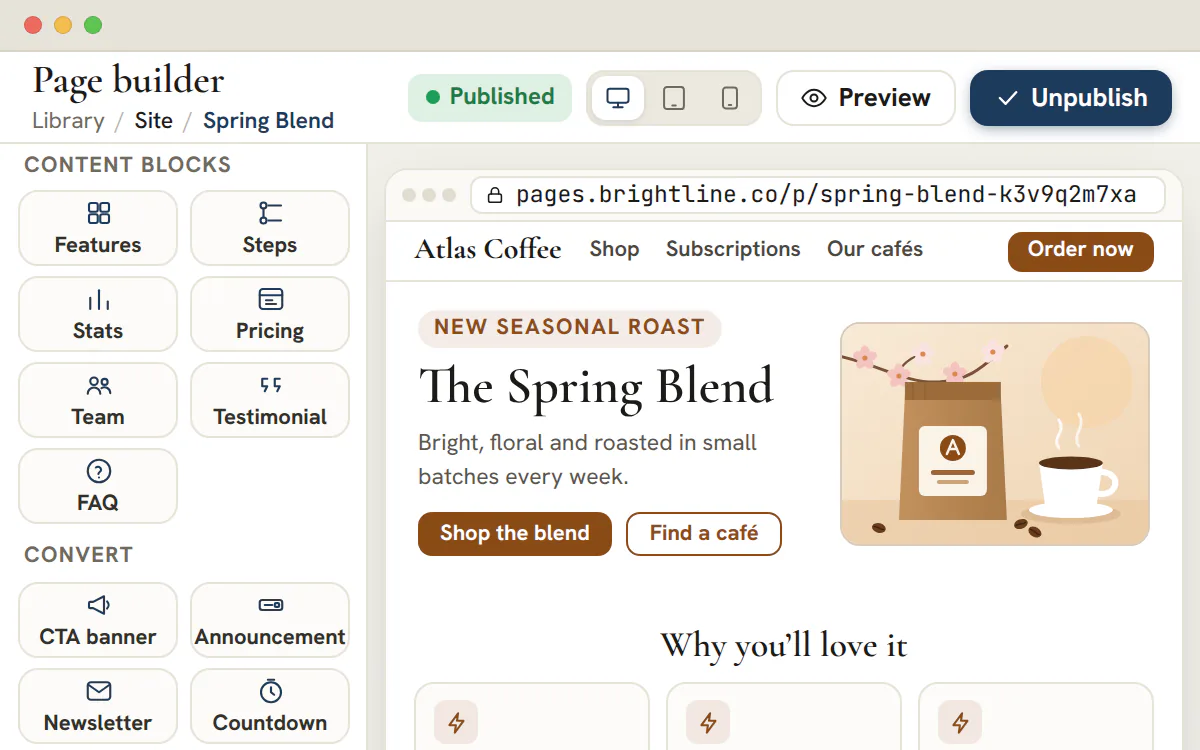
A landing page is assembled section by section, then published to a live address.

Custom domains

Serve it from the client's own domain

Add the domain in the client's Data Settings, copy the DNS records the console shows, and once it verifies the client's pages are served from it.
  • A domain belongs to one client and serves only that client's pages
  • Choose which page answers on the root address
  • Custom head code and Tag Manager run only on a verified domain
Custom domains on the Scale and Enterprise plans
Illustration
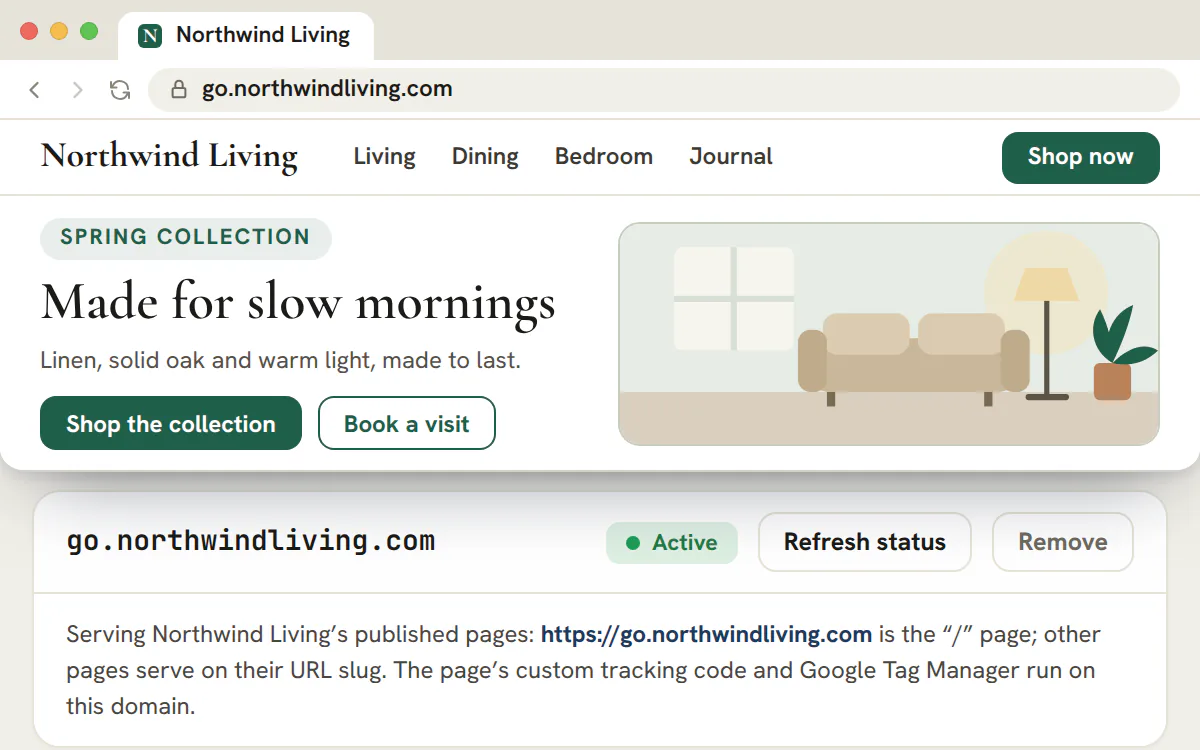
A client's domain is verified and their landing page goes live on it.

Site Ask AI

A first draft in the client's brand

Ask AI writes the words. The console builds the page and dresses it in the client's logo, colors and fonts. You get a draft to finish, never a page that goes live by itself.

  1. Brief it

    Choose a page type, such as lead generation, a free consultation or a webinar, add a description and pick a length.
    Agency plan and up
  2. Check the brand

    A Brand card lists the logo, colors and fonts the page will wear, read from the client's brand files and research.
  3. Generate and preview

    Look over the draft at desktop, tablet and phone widths before anything is saved.
  4. Create the draft

    Create page saves an unshared draft that you edit like any other page. Nothing is published or shared until you do it.

Ship the client's landing page from the console

Draft with Ask AI, finish in the builder, publish as a snapshot and add the client's own domain on the Scale plan.

The Site builder comes with the Agency plan, from $299/month.

On this page
The landing page library in the AI Marketing Dashboard console — a client's published homepage, a draft landing page and a booking page, each with its path, section count, publish status, views, visitors and conversion rate

A drag-and-drop builder with 32 section types

Hero, features, pricing, testimonials, FAQ, footer and more

Assemble a page from 32 section types — navbar, hero, features, steps, stats, pricing, team, testimonials, FAQ, CTA, newsletter, countdown, gallery, footer and more — by dragging them onto the canvas and reordering with a drag handle or the keyboard. Nearly every section ships with layout variants (a hero centered, split, minimal or image-background; a footer in columns, simple or centered), so pages do not all come out looking like the same template.

It is a real builder, not a fixed set of stock layouts: the structure of each page is yours to shape, section by section, in the client's brand.

Per-element styling, down to the button

Spacing, backgrounds, corners and button styles you control

Every section exposes spacing (compact, normal, roomy), most expose a background, images expose corner styles, and buttons carry their own style group — corners, size, full-width and an optional color override — plus a link and a click-tracking event. The design controls are granular enough to match a client's brand without dropping to code.

Because the styling lives on the sections themselves, a page stays consistent and on-brand as it grows, instead of accumulating one-off overrides that drift apart.

Real image uploads and forms that actually capture leads

Upload artwork and drop in a working form

Upload real artwork for heroes, galleries, media sections and logos — aspect-preserved, embedded in the page — so the canvas shows the actual design, not greyboxes. The form section links a real form from your Forms tool and renders its fields, so the page's call-to-action is a working lead-capture, not a decorative placeholder.

It means a landing page built here is a complete, functional page: the imagery is real and the form is wired to the same forms you manage elsewhere in the console.

SEO and conversion tracking built into every page

Meta tags, GA4, Google Ads, the Meta Pixel and more

A page settings dialog handles the SEO that decides whether a page is found and shared — title, description, canonical, social image and a noindex toggle — alongside the analytics a paid campaign depends on: GA4, Microsoft Clarity, a Google Ads conversion ID and label, the Meta Pixel and the other major ad-platform tags. The tracking snippet is generated for you from those IDs, and Google Tag Manager and custom head and body code run on a client's verified own domain.

For an agency running paid traffic, that built-in measurement is the difference between a pretty page and a page you can actually optimize — conversions are attributable from the moment it goes live.

Save the sections that work and reuse them anywhere

A universal block library and duplicate-to-client

Save any section to a universal library and drop it into a page for any client, or duplicate a whole page into another subaccount as a starting point. The hero that converts for one client becomes a reusable building block instead of something rebuilt from scratch every time.

That reuse is where an agency's page-building speed compounds: the best work becomes the default starting point, so each new page begins ahead of the blank canvas.

Theme-organized, previewed across devices, published when ready

Draft, check on mobile, ship

Pages are organized by client and campaign theme, previewed at phone, tablet and desktop widths, and flipped between draft and published when they are ready. The whole lifecycle — build, preview, publish — lives in one place next to the copy, creative and forms the page is made of.

Switch the client and you see that account's pages; the builder is a per-client workspace, so a roster of clients' landing pages stays as organized as the rest of their marketing.

From client brief to live landing page in six moves

Start from a template or an Ask AI draft, put the client's real content in, link the lead form, check three screen widths, clear the launch checklist and publish.

  1. Choose the starting point

    The New page menu offers a blank landing page, a template, a booking page and Ask AI. Use a template for a familiar campaign type, Ask AI when the brief and brand files are already in the workspace, and a blank page for an unusual layout.

  2. Replace every sample line

    New pages arrive with sample copy. Put the client's own words, prices and contact details in each section's panel. Sample customer quotes, team members and contact details stay visible until you change them, and the checklist lists them as required fixes.

  3. Link the lead form

    A form section, a hero with a form, a newsletter box and a popup can each link a form from the online form builder. A booking section embeds a published booking page. Publishing also publishes the page's forms, with a warning.

  4. Check three widths

    Switch the canvas between desktop, tablet and phone, then open Preview to see the page without the editing frame.

  5. Clear the launch checklist

    Settings, then General, lists what to fix, failing items first and required before recommended, with tips last. It advises and never blocks, so whoever publishes decides what waits.

  6. Publish, then share

    Publishing freezes a snapshot at a public address. Later edits stay in the draft until you choose Republish changes. Putting the page in the client's portal is a separate switch that waits for an internal review.

Tip

Reuse a page that already converts

Duplicate page copies a page within the client. Duplicate to another client copies it into a different account as an unshared draft with counters at zero, the target's theme and no page color. Tracking IDs travel with the copy, so replace them before publishing.

Choosing among the eight starting templates

Each template is a complete page built around one next step for the visitor, so choosing one is really deciding what the visitor should do.

The starting templates, who each suits and the path each one builds
TemplateBest forThe path it builds
Lead generationQuote requests and sign-ups from adsA form in the hero, proof beneath it, every button back to the form.
Book a callConsultations, demos and discovery callsThe outcome, how the call works, then a booking calendar.
Webinar or eventLive sessions, workshops and launch eventsA banner and countdown build urgency before registration.
Product launchSoftware, apps and new releasesLogos, a comparison and a monthly or yearly price switch, then sign-up.
Local serviceTrades, clinics, salons and home servicesA photo hero, services, reviews, an estimate form, a map and a sticky estimate button on phones.
Promo or saleSeasonal sales and limited-time offersAn offer with a countdown, plan cards and a short form, plus an exit popup.
Lead magnetGuides, checklists and templatesThe sign-up form leads, then what is inside, then a slide-in on exit.
Agency servicesAgencies, consultants and professional servicesA split hero, services and process, the team, then an inquiry form.

Every call to action in a template scrolls to a section on the same page. None links a form, a booking page or a countdown date, because those belong to the client, and the launch checklist asks for each.

What the launch checklist catches before visitors do

The checklist reads the page the way the live page will render it, and names what would break, look unfinished or cost leads.

Required fixes the checklist raises and what a visitor would otherwise meet
On the pageOn the live pageThe fix
A form section with no form linked, or a deleted formThe section does not renderLink a form or remove the section.
A hero with a form, or a newsletter box, with no formText only; the sign-up box is hiddenLink a form in the section.
A countdown with no end dateThe timer is hiddenSet the end date.
A booking section whose page is missing or unpublishedThe section does not renderPublish the booking page, then republish.
A popup with neither a button nor a formVisitors can only close itAdd a button or link a form.
A button aimed at a section link nothing usesThe click leads nowhereName the section link or correct the button.
An image, gallery, logo or video section with no mediaThe section stays off the pageAdd media or remove it.
Sample quotes, team members or contact detailsThey read as the business's ownUse real ones, with permission, or remove them.

Recommended fixes for search, sharing and measurement

  • A page title and meta description of a sensible length; the checklist says which is too short or too long.
  • One main headline. A hero is the page's H1, so a second hero or a Large heading makes a second.
  • A social share image and a favicon, so shared links and browser tabs look finished.
  • Alt text on every picture that can carry it, and a tracking ID so visits and leads are measured.
  • No placeholder links: any button still pointing to a bare # is listed by name.

Tips that stay out of the score

Two tips sit outside the score: keep a call to action in reach on phones with a sticky bar or a pinned nav button, and turn on Ask first before ad pixels load.

What Ask AI writes for a page, and what stays yours

Ask AI drafts the words and picks the sections. The console builds the nav bar and footer, applies the brand and keeps offers and prices to what the client brief states.

Who decides each part of an Ask AI page
Part of the pageDecided byWhat that means
The wordsAsk AIHeadlines, body lines, steps and answers, drafted from the Profile, website, published research and brand guide, in the wording the client's customers use.
Sections and orderAsk AI, inside the console's rulesIt picks from 11 content section types, starting from a suggested order for each of seven page types, while the console builds the nav bar and footer and holds the page to the length you choose.
Prices, offers, taglinesThe client's briefStated only when the brief holds them, as written.
Logo, colors, fontsBrand files and researchListed on a Brand card before you create the page.
Customer quotes, team members, client logosYouNever drafted: they would name people or customers nobody supplied.
The lead formYouChoose it under Collect leads with.

The brief takes a page type (lead generation, free consultation, service page, promo or offer, webinar or event, product launch, something else), a description, an optional theme and a length: short (3 to 5), standard (5 to 7), long (7 to 9) content sections, plus a nav bar and footer the console builds. Create page saves a new draft. Replace page content swaps the sections of the open page and offers Undo. The draft stays unpublished and unshared until someone acts.

Note

A first draft, not a finished page

Read the headline, every number and every promise against the brief, then run the launch checklist as for a page built by hand.

Publishing, client sign-off and the client's own domain

Publishing is a snapshot, client sharing is a separate switch behind review, and a custom domain makes the page the client's own address.

What publishing does

A form on the page sends each lead to the CRM, into a pipeline that carries the page's name, and the list tracks views, visitors, leads and average conversion.

Review and sharing with the client

Landing pages and booking pages follow the Library's review path: submit, internal approval, then sharing. In the client's portal Library the client's admin can approve the page, while other portal members can send back change requests as comments.

Booking pages beside landing pages

A booking page holds event types with a duration, weekly hours in one time zone, blocked days, buffers, a minimum notice, a required consent checkbox and a thank-you view. Each booking files a lead and a meeting, and the visitor gets Google Calendar and .ics links.

A custom domain for the client

A domain serves one client's pages only, and you pick the page that answers on the root address. A workspace can connect up to 20.

Plan

Plans for the Site builder

The Site builder, publishing and Site Ask AI start on the Agency plan at $299 a month, which includes 15 client accounts. Custom domains and the client portal need Scale at $699 or Enterprise. The Studio plan keeps Forms, Copy, Keywords, Creatives and Blogs but not the Site builder.

Frequently asked questions

How do I build a landing page for a client?

Open Library, Site, choose New page, then pick a template, a blank landing page or Ask AI. Replace the sample content with the client's own, link a form, check the phone view, clear the launch checklist in Settings and publish. The page goes live as a snapshot at a public address, and later changes stay in the draft until you republish.

Can a landing page capture leads without a separate form tool?

A form section links a form from the Forms library, and every submission lands in the CRM as a lead inside a pipeline bearing the page's name, with the visitor's campaign source attached. The team looking after the client is alerted. A booking section works the same way for appointments, filing a lead and a meeting.

Which tracking tags can a client landing page carry?

Google Analytics 4, Microsoft Clarity, Google Ads with a conversion label, Meta Pixel, TikTok, the LinkedIn Insight Tag, Microsoft Advertising, Pinterest, Snap, X and Reddit. Tag Manager and free-form custom code run only on a client's verified own domain, not on the shared publishing address.

Does a published page show a cookie banner?

Only when you choose Ask first under Tracking, Privacy. Then every tag waits, a banner offers Accept and Decline at equal size, and Cookie settings reopens the choice. With the setting Off, tags load as soon as the page does.

Can a client approve a landing page before it goes live?

Pages go through an internal review first. After approval you can share the page into the client's portal Library. There the client's admin signs it off, and other portal members can return it with comments. That portal belongs to the Scale plan and Enterprise. Publishing the live page remains a separate step that stays with your team.

Do I need a separate subscription to publish pages for each client?

No. The Site builder belongs to the workspace, so one subscription covers every client account in your plan, each with its own pages, forms and counters. The builder and publishing start on the Agency plan, which includes 15 client accounts. The Studio plan does not include the Site builder.