Support · Help desk
Every client request, in one queue
Clients raise a request in their branded portal, or you log it for them. Your team works one queue across every account, with internal notes, a response clock on what clients raise in the portal, and a task created for each ticket. Explore the demo below, or create a workspace and open your first ticket.
Already have a workspace? Sign in
Support · Help desk
A client request that arrives as a chat message, a forwarded email and a phone call is three requests with no owner, and the one that mattered is the one nobody answered. Support, the help desk in AI Marketing Dashboard, gives each request a number, a status and a priority, so it can have an owner. A response clock runs while the client waits for an answer, your team's private notes stay apart from what the client reads, and each ticket gets a task in the Projects tool your team already uses. The client gets one calm place to ask, follow and confirm. The agency gets one queue across every account.
Messages or tickets
A request needs a number before it can have an owner
Requests rarely get lost because people are careless. They get lost because the places they arrive in give them no owner, no clock and no end.
Requests by chat, email and call
The request is fine. The way it is carried is what loses it.
Requests at a desk
Clients raise tickets in the portal on Scale and Enterprise. Your team can log one for the client on any plan.
The desk
From a portal request to a resolved ticket
One ticket, followed from the moment a client raises it to the moment the client confirms the fix.
Note, reply and resolve without leaving the thread
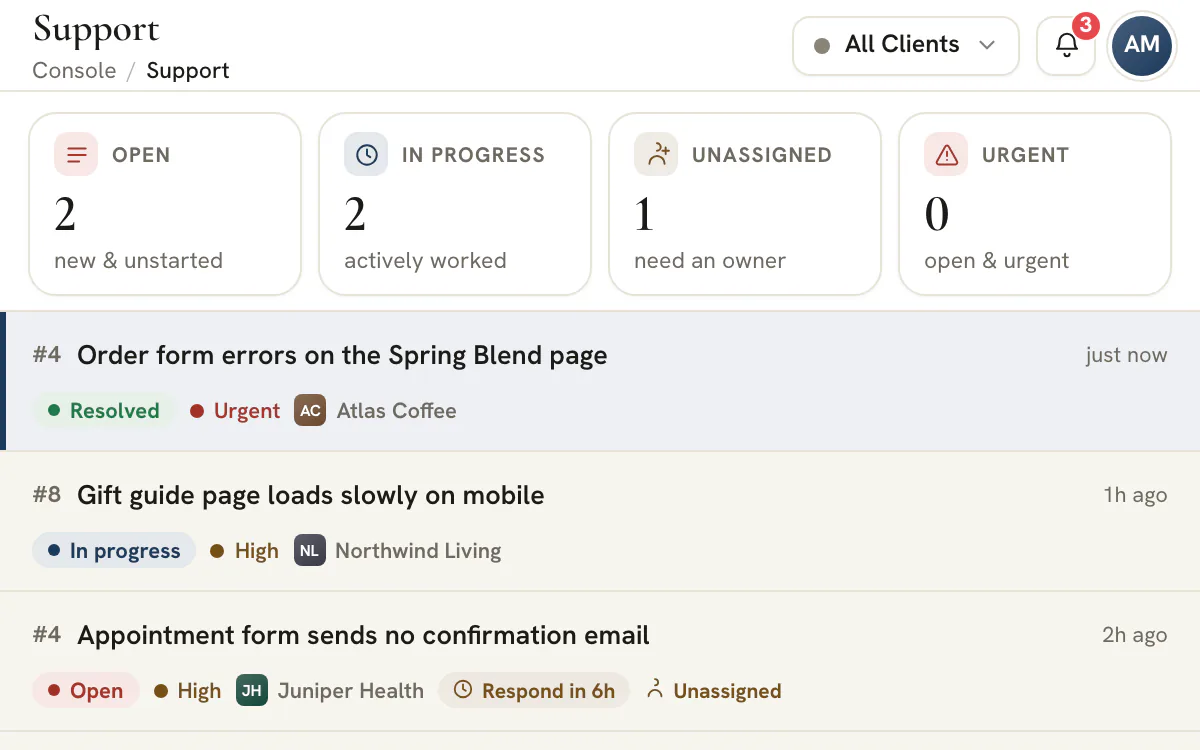
A ticket's week
The same four moves on every ticket
Whatever the request, the desk asks the same questions in the same order, which is what makes a long queue possible to run.
Triage
Work it
Park what cannot move
Resolve and confirm
Watch the walkthrough
Watch one ticket go from unowned to resolved
One ticket from first look to resolution: who owns it, what stays internal, which canned reply helps, when to resolve and where its task ends up.
44 seconds
0:00 Find the ticket that needs an owner. Spot tickets nobody owns yet on the cards, then open one and read the request.
0:08 Assign an owner. The client can see the short “Assigned to” line this adds to the thread.
0:14 Choose who can read your message. Internal notes stay with your team. A reply goes to the client.
0:23 Reply to the client. Insert a canned reply, then send. A public reply moves an Open ticket to In progress.
0:29 Resolve the ticket. Resolve only changes the status, so send your explanation first.
0:35 Check the tracking task. Every ticket gets a task in Projects for your team only. The client never sees it.
Give the next portal request an owner and a clock
Create a workspace, add a client and open the first ticket. Invite the client to the portal on Scale or Enterprise when you want them to raise their own.
Plans start at $99/month.
In the client portal, New request opens with a short question: what do you need help with? Seven cards cover the usual ground, from something broken to billing, accounts and access, or reports and data, and each one preselects a sensible priority the client can change. The form asks for a subject and a description and takes up to six attachments. Once it is sent, the client sees a plain account of what happens next, including the typical first response for the priority chosen. Client portals come with the Scale and Enterprise plans.
Plenty of requests never go near a portal. They arrive by email, on a call or in a shared channel. Anyone who can manage Support can press New ticket and log one for the client: pick the client, write the subject, choose a category and priority, name an owner if you already know who should have it, add the requester's name and email, and attach files. It lands in the same queue with the same numbering, labeled as logged by the agency, so the desk works on every plan and the portal is the part that lets clients help themselves.
The agency side opens on five counts: Open, In progress, Waiting on client, Unassigned and Urgent. Each is a button that filters the queue under it, beside tabs for All, Open, In progress, Waiting on client, Resolved and Closed, a search box, and a sort by recent activity, priority, newest or oldest. My tickets shows the ones assigned to you, and the Unassigned toggle shows the ones nobody owns yet. Ticket numbers run per client, so a client's #4 says nothing about how many tickets your agency handles.
The client switcher in the header scopes the whole page. Pick one client and the queue, the counts and the New ticket form follow it; pick All Clients and each row carries the client's name and mark, so a lead can watch every account at once. The switcher shows open tickets per client as well. A context panel on the open ticket carries the client's profile facts, the requester, the contacts and portal members, and the account team, with quick links to the profile, CRM, Chat and Files.
For anyone who can manage Support, the composer under each ticket switches between Reply and Internal note. A reply goes to the client. A note is saved in the same thread as a dashed amber card marked Internal note, and the composer itself turns amber while you write one, so posting the wrong thing by habit is hard. Notes are where the working happens: who holds the client's login, what the last developer said, whether the credit was already agreed.
The separation is made on the server before the portal ever receives the thread. Notes are filtered out of the thread there, the author's roster key is never sent, and the ticket's assignee, tags, snooze and linked task are not part of what a client can load either. What the client does see is the public thread: replies, attachments, and short system lines such as a status change or who the ticket was assigned to, so progress is visible even when the discussion is not.
Every ticket carries a priority, and each priority carries a response time: Urgent 4 hours, High 8 hours, Normal 24 hours and Low 48 hours. While the ball is in your court, the ticket header shows a chip that reads Respond in 3h, and once the time is up it turns red and reads Overdue, with how long it has been late. The clock starts when the client writes, or when a portal ticket is raised, and stops when the team replies. Clients write through the portal, so on a plan without one a ticket your team logs carries no clock. An internal note does not stop it, and nothing runs while a ticket is waiting on the client, resolved or closed. The hours are plain elapsed hours, not business hours.
Replying is quicker with the five canned responses in the composer: acknowledge, ask for more information, give an update, ask the client to confirm a fix, and say the work is scheduled. They insert as ordinary text, so you edit the details before sending. The first reply a client can read takes an Open ticket to In progress by itself and leaves a system line saying so. That keeps Open for tickets that need the team's next move: new ones, ones a client has reopened, and ones a client answered while the ticket was resolved or waiting on the client.
Not every open ticket can move today: a developer is out, a client is traveling, a platform is down. Snooze parks it for four hours, until tomorrow at 9 AM, for three days, for a week, or until a time you pick. The ticket leaves every default tab and the counts above the queue, Unassigned and Urgent included, and waits under a Snoozed tab that exists only while something is parked. What is left in the queue is the work that can be done now.
Two rules keep it honest. A snooze is whole-team and internal: a colleague sees the same queue, and the client gets no notification and no line in the thread, and never receives the snooze itself. And it does not pause the response clock, because hiding a row is triage while a promise to answer is a commitment, so a parked ticket can still go Overdue while it is out of sight. If the client replies or reopens a snoozed ticket, it wakes as soon as they do and rejoins the queue.
A request is also work, and work belongs on the board. The desk keeps a task for each ticket in a Support Tickets project for that client: a portal request gets its task as it arrives, and a ticket your team logs gets one when it is saved. The task is titled with the ticket number and subject, created with the ticket's priority and linked back to the ticket. When your team changes the status, owner or subject, the task follows, with resolved and closed tickets going to the first done column, In progress going to the progress column when your board has one, and everything else sitting in the first open column. When a client closes or reopens a ticket, the task moves too.
Creating a task is best effort, so if one is ever missing, View task in Projects in the ticket's menu creates it. The link runs one way, from ticket to task, so a developer can add subtasks and comments to the task without touching what the client reads. The project and its tasks are created private and are not shared with the portal, which has its own Support page for the client's side of the story. Support load then appears beside delivery work in Projects, where managers already look, instead of in a separate tool they have to remember to open.
Resolving a ticket does not end the conversation; it asks a question. The client's ticket shows Did this solve it? with two buttons: one that closes the ticket, and one, Not quite, that reopens it. A closed ticket stays closed until the client or your team reopens it. When the client reopens, the ticket returns to the queue, wakes if it was snoozed and tells the team; a reopen by your team sets the status back to Open. On the client's side, replying to a closed ticket is blocked until it is reopened, so a late reply never disappears into a finished record.
Once a ticket is resolved or closed, the client can rate it from one to five, and the rating appears as stars on its row in your queue and in the ticket header. Team status changes and assignments, a client closing or reopening, and ratings leave a system line in the thread, so the history of a ticket reads in order. A ticket raised by mistake can be deleted by someone who can manage Support, after a two-step confirmation. The thread goes with it, and Undo brings back the ticket but not its replies. The ticket's task stays in Projects until someone removes it.
Priorities only mean something when the client and the team read them the same way. Start from the clocks the desk shows, then add the commitments that are yours.
| Priority | Use it when | Response clock | First move for the team |
|---|---|---|---|
| Urgent | Something is broken and is blocking work right now | 4 hours | Assign an owner at once, write the plan as an internal note, and tell the client when to expect the next update |
| High | The request is important and time-sensitive, but there is a workaround | 8 hours | Assign an owner the same morning and reply with the workaround |
| Normal | A standard request where the usual turnaround is fine | 24 hours | Triage it in the daily pass, then reply with the owner and a date |
| Low | Nice to have, whenever the team has a moment | 48 hours | Send an acknowledgement and schedule it beside other work |
The clock measures how long a client waits for a reply, in elapsed hours rather than business hours. It runs from the client's latest message, or from the moment a portal ticket is raised, until your team replies, and it is off while a ticket waits on the client. It is not a resolution timer, because the desk does not track how long a fix takes. If you promise resolution dates, put them on the linked task in Projects and keep the promise there.
Note
Tell clients what to expect
The portal shows each priority's typical first response when a request is submitted, so these hours are the ones a client reads. Put the same hours in your onboarding document, and a late reply stops being a surprise.
Five statuses cover a ticket's life. Knowing what each does to the response clock explains most of what the queue shows.
Five counts sit above the queue. Read them in this order and the day's tickets sort themselves.
Switch to All Clients
A lead's first look is across every account. Pick All Clients in the header, and the counts and the queue cover the whole book of work.
Clear the Unassigned card
Open it and name an owner for every ticket in it. Look at the category and priority the client chose, and correct them when they are off. Assigning writes a short line into the thread, so the client can see who has the request.
Work the unanswered requests first
Sort by priority and open the Urgent and High tickets nobody has answered. The chip in the ticket header reads the whole thread, so it is the clock to trust, and a red Overdue means the answer is late. A reply to the client stops the clock, even a short one. An internal note does not.
Chase Waiting on client
These tickets have the ball with the client, and the clock is off. Send a short nudge on the ones that have sat for days, or resolve the ones whose request has gone quiet.
Snooze what cannot move
Park tickets that depend on someone away or on a date, and pick a time to look again. The Snoozed tab keeps them out of the counts above the queue until then, and a client reply brings them straight back. The response clock keeps running while a ticket is parked, so look in the Snoozed tab as well.
My tickets gives each person the same list narrowed to their own, and the ticket menu opens the linked task when a developer needs to take over. A large queue loads 50 tickets at a time, newest activity first, and the counts cover what is loaded, so press Load more tickets before trusting a total. Questions that need a quick answer rather than a record belong in Chat, which the portal also has. A question that keeps coming back can become a lesson in the Academy, shared with the client, so the next one is answered before it is asked.
The desk ships five. They are drafts to edit, not messages to send untouched.
| Reply | Use it when | Check before you send |
|---|---|---|
| Acknowledge, on it | A request has arrived and nobody has answered yet | Make sure someone really is on it, and say who |
| Need more info | You cannot start without an address, a screenshot or an example | Ask for the one thing you are missing, not a list |
| Update, in progress | Work is under way and the client is waiting to hear | The text promises an ETA within the next business day, so change it when that is not true |
| Resolved, please confirm | The fix is in and needs the client's yes | Say what you changed in the same message, because the resolved notice does not say what was fixed |
| Scheduled for next sprint | The work is accepted but is not starting now | The label says next sprint but the text says the current work cycle, so make it match the real plan |
A canned reply is inserted into the composer as plain text, below anything you have already typed, so personalize the first line before you send. The list is built in and cannot be edited, which is one more reason to treat each reply as a draft.
The desk makes the wrong post hard. These habits make it rare.
| On the ticket | Your team | The client |
|---|---|---|
| Replies and their attachments | Sees them | Sees them |
| Internal notes and their attachments | Sees them as dashed amber cards | Never receives them |
| System lines for team status changes and assignments, and for a client closing, reopening or rating | Sees them | Sees the same lines |
| Priority and category | Sees and can change them | Sees them, including any change you make |
| Tags, snooze and the response clock | Sees them | Never receives them |
| The linked task in Projects | Sees it, and opens it from the ticket menu | Does not see it, unless someone shares it from Projects |
Tip
Attach files to the right message
A file attached to an internal note is held back from the portal along with the note. Attach the version you want the client to have to a reply.
The link is one way: the ticket's title, status and owner carry over to the task, and nothing on the task changes what the client sees.
| On the ticket | On the task |
|---|---|
| Number and subject | The title: Support, the ticket number, then the subject, kept in step |
| Priority: Urgent, High, Normal or Low | Priority: Urgent, High, Medium or Low, set once when the task is created |
| Status: Open or Waiting on client | The board's first open column |
| Status: In progress | The progress column when the board has one, otherwise the first open column |
| Status: Resolved or Closed | The first done column |
| Assignee | The task's assignee, kept in step |
| Request text | The task description, written once when the task is created, with a link back to the ticket |
The task carries a support tag and is created private, so it is not shared with the client unless someone shares it from Projects. A ticket the client closes moves its task to the done column, and one the client reopens moves it back to open. If you rename or reorder the board's columns, the mapping follows them, because it reads which columns are marked done.
Open it with View task in Projects from the ticket menu. If a ticket has no task yet, the same menu item creates it. Add subtasks and comments there as you would on any task, and while the task stays private none of it reaches the portal. Projects shows the Support Tickets project beside the client's other work, which is how a manager sees support load next to delivery.
A ticket is finished when the client says so. The desk gives the client a way to say it.
Send the explanation, then resolve
Resolving changes the status, writes a system line and notifies the client that the ticket is resolved, but the notice says nothing about the fix. Send your explanation first, in a reply.
The client sees Did this solve it?
On a resolved ticket the client is asked whether it solved the problem, and can close the ticket or press Not quite to reopen it. A plain reply works too, and it moves the ticket back to Open.
A closed ticket stays closed
The client has to reopen it before replying, and your team can reopen it from the ticket header. When the client reopens, a snoozed ticket wakes and the team is told.
Read the rating
A resolved or closed ticket can be scored by the client from one to five. The stars show on its row and in its header, so a low score is easy to find after the fact.
The desk does not total ratings into a score or a report. The stars live on individual tickets, so review them in the queue under the Resolved and Closed tabs, and set up the portal members for each client from their profile in Subaccounts.
State the priorities, the response time for each, whether the hours are business or elapsed, the ways a client can ask, and what is out of scope. The desk carries the first part: four priorities with response clocks of 4, 8, 24 and 48 elapsed hours. Publish the rest in your onboarding document, and put any resolution promises on the linked task.
The agency help desk is on every plan. Clients raise and follow their own requests in the client portal, which comes with Scale and Enterprise. On Studio and Agency your team logs tickets with New ticket and keeps the queue, assignments, internal notes, snooze and linked tasks. Response clocks need a message from the client, so they run only where clients write in through the portal.
No. Clients sign in to their own portal with a portal account, which is separate from your team and uses none of your agency seats. Portal members see their company's tickets, including ones your team logged for it, and nothing about other clients. The portal is part of the Scale and Enterprise plans.
No. Internal notes are removed on the server before the portal receives a thread, and the data a client loads never includes tags, snooze, the assignee field or the linked task. What the client reads is the public thread: replies and their files, plus brief system lines for a status change or an assignment.
The response time depends on the priority: Urgent 4 hours, High 8, Normal 24 and Low 48. The clock runs in elapsed hours. It starts at the client's message, or at creation for a portal ticket, and ends at the first reply from your team. Internal notes do not stop it, and it is off for tickets that wait on the client, are resolved or are closed.
The ticket wakes at once and returns to the queue. A client reply or a client reopen clears the snooze, and a reply on a ticket that was waiting on the client or resolved also moves it back to Open. The snooze itself never pauses the response clock, so a parked ticket can go Overdue while it is hidden.
Agency Admins can work every ticket. An Agency Team member needs the Support permission, which is included by default, and sees only the clients they are assigned to. Without the manage permission the queue is read only: there is no composer or New ticket button, and the status, priority, owner and type fields show but cannot be changed. Without the view permission the page explains that access is restricted.
Yes. New ticket asks for the client, a subject, a category and priority, an optional owner, the requester's name and email and a description, with files attached if you have them. It joins the same queue, shows as logged by the agency, and gets its linked task like any other ticket. If the client has portal access, the ticket also appears in their request list, and replies reach the client there, so a requester without portal access is not emailed them.
Within each person's notification settings, yes. When a client raises a ticket, replies or reopens it, the assignee and the teammates who have Support access and are assigned to that client are told by bell, device alert and email. If there are none, Agency Admins are told. A teammate is also told when a ticket is assigned to them. The client gets an emailed receipt when they submit. Your replies and resolutions reach the client's portal members by bell, device alert and email, and the resolved notice does not explain the fix.
The canned replies are built in and cannot be edited or extended. Each one inserts as plain text into the composer, below anything you have already typed, so you can change it freely before sending. If you keep your own standard wording elsewhere, paste it into the composer when the built-in replies do not fit.
